Setting Up Unit Test Coverage in VS Code for .NET
A native Testing sidebar, one CLI flag, and a gutter that turns red and green. The whole setup, no extra plumbing.
Coverage numbers are useless if you have to leave your editor to see them. The fastest setup is the one where running a test and seeing what it covered are the same action — no switching windows, no opening a browser tab for an HTML report.
Here’s what that takes in VS Code.
Install C# Dev Kit
It ships a native Testing sidebar — discovery, run, debug, all built in. No separate test explorer extension to configure, no settings.json wiring for test arguments.
Reference coverlet.collector
Add the coverlet.collector package to your test project. It’s already the default in dotnet new xunit and dotnet new nunit templates, so if the project was scaffolded recently it’s probably already there.
Run with coverage collection
dotnet test --collect:"XPlat Code Coverage"
That’s the whole command. No MSBuild properties, no explicit output-format flags — coverlet picks cobertura by default and writes the report to TestResults/<run-id>/coverage.cobertura.xml.
Install Coverage Gutters
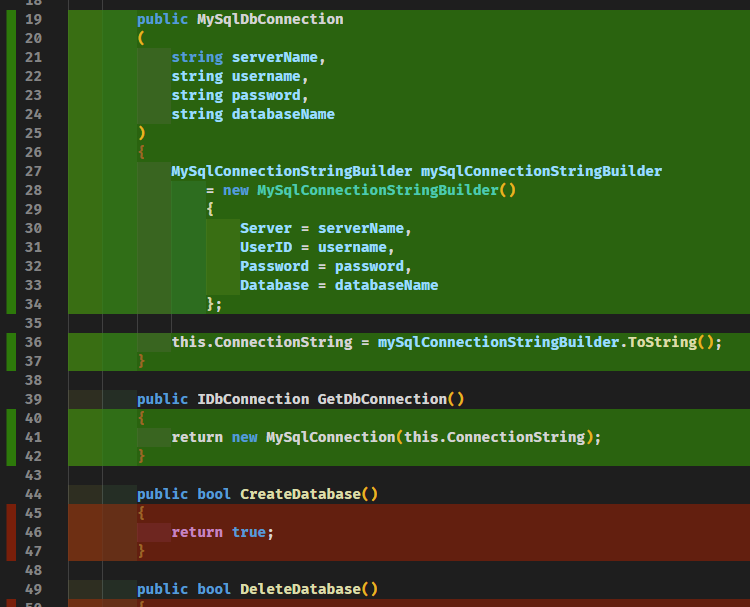
Point it at that cobertura file. Enable “Show Gutter Coverage” and “Show Line Coverage” in settings. Covered lines turn green in the gutter, uncovered lines turn red, and the loop closes — write a test, run it, see exactly what it touched, right next to the code.
One thing worth knowing
If you inherit an older project still wired up with coverlet.msbuild and explicit /p:CollectCoverage=true flags, it’s not broken — leave it alone. Just don’t reach for that pattern on a new project. The collector path is shorter, and every current .NET test template already assumes it.